
Exporting data from Salesforce
OrgFlow's data export feature lets you query records from a Salesforce org and download the results as files. You can select objects and fields from a list, or write a custom SOQL query — and OrgFlow takes care of the rest, using the Salesforce Bulk API for fast and efficient retrieval.
The exported data is saved as downloadable artifacts on the job, available in one or more file formats of your choosing.
Starting a data export job
To start an export job, navigate to the Data page in OrgFlow Web and select Export data. This opens the Export data dialog where you configure the inputs and options of the export job.
If the Salesforce org you're looking to export data from is an environment in your stack, you can also open the Export data dialog from the Environments page, or from the details page of an individual environment; in this case the Salesforce org selection will be prepopulated.
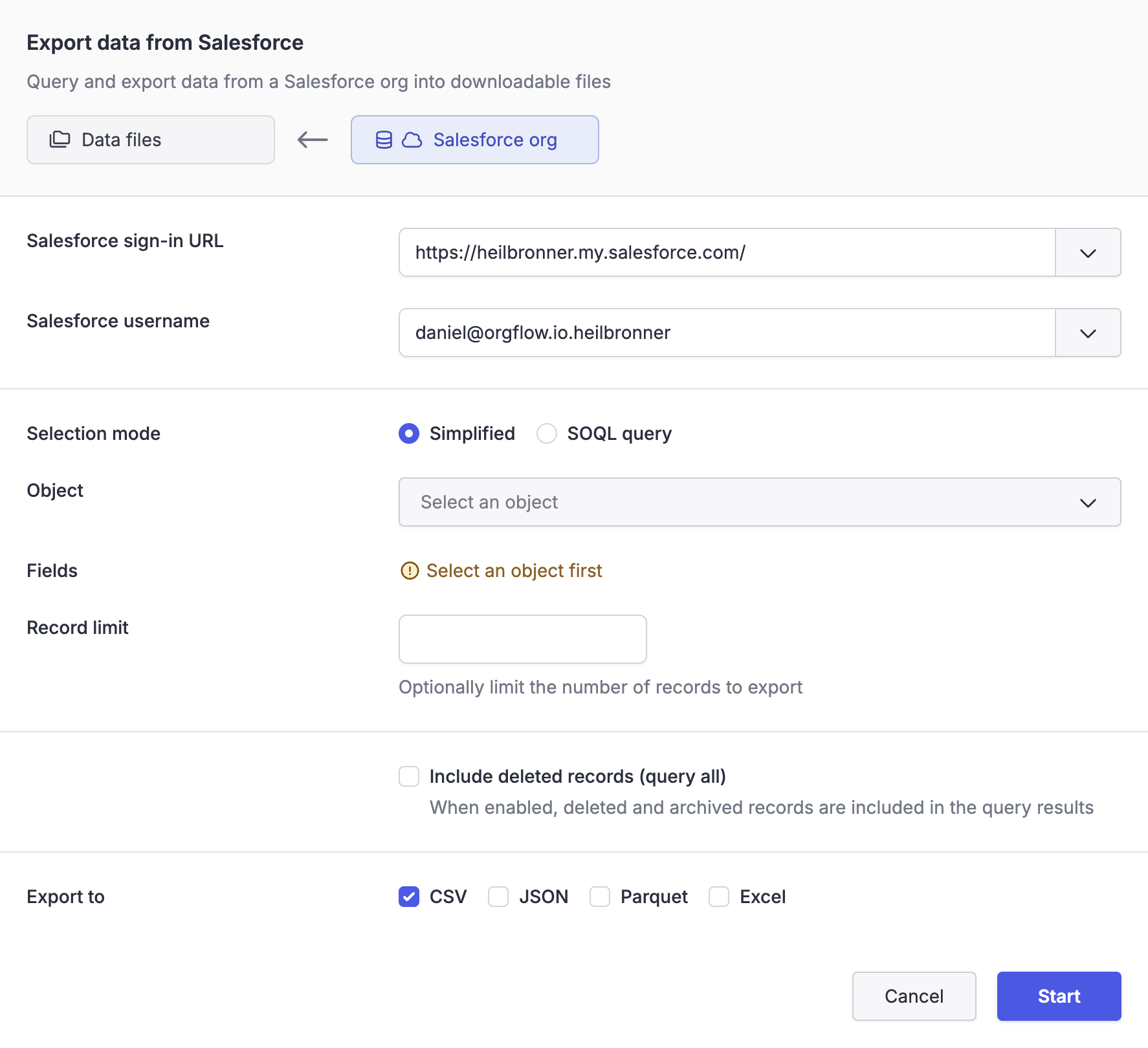
The following sections describe the available options.
Salesforce org
You must first select which Salesforce org to export from, by providing the org's sign-in URL and a username.
OrgFlow will provide suggested sign-in URLs and usernames that it already knows about from your stack's environments and stored access tokens. You can also enter a different sign-in URL or username manually.
Once a sign-in URL and username have been entered, OrgFlow will automatically verify your authentication. If the user has not previously been authorized, OrgFlow will initiate a Salesforce device code authorization flow to obtain the required access.
Use any Salesforce org
Data operations can target any Salesforce org that you can authenticate to — the org doesn't have to be configured as an environment in your stack.
Selection mode
There are two ways to specify what data to export:
Simplified
In simplified mode, you select a Salesforce object (e.g. Account, Contact, Opportunity) from a list. The list of available objects is populated based on which objects are queryable. Only objects visible to the selected Salesforce user are shown.
Once you've selected an object, you then select one or more fields to include in the export. The list of available fields is populated based on which fields on the selected object are queryable. Only fields visible to the selected Salesforce user are shown. By default all available fields are pre-selected.
You can also optionally set a record limit to cap the number of records exported.
This mode is the easiest way to export data without needing to know or write SOQL.
SOQL query
In SOQL mode, you write a custom SOQL query directly. This gives you full control over the query, including the ability to use WHERE and ORDER BY clauses, and to traverse child to parent relationships.
For example:
sql
SELECT Id, Name, Industry FROM Account WHERE CreatedDate = THIS_YEARPlease note that not all SOQL language features are supported in Bulk API operations. Please refer to the SOQL considerations section in the Salesforce Bulk API 2.0 Query documentation for details.
Include deleted records (query all)
When enabled, deleted and archived records are included in the query results. This corresponds to the queryAll operation in the Salesforce Bulk API. This can be useful when you need to export a complete dataset that includes records in the recycle bin or records that have been archived.
TIP
Including the IsDeleted field in the query allows you to see which records in the results are archived/deleted.
Export files
You can select one or more file formats for the exported data. At least one format must be selected. The available formats are CSV, JSON, Parquet and Excel. When multiple formats are selected, OrgFlow produces a separate downloadable file for each format, all containing the same data. See file formats for more about each format.
Excel is limited to 1,048,576 records
Excel files are limited to a maximum of 1,048,576 records due to limitations in most software tools that can open them. If the export operation yields more than 1,048,576 records, no Excel result file will be created.
Job execution
When you submit the export, OrgFlow provisions a job to perform the export. The job executes the following steps:
- OrgFlow authenticates to the target Salesforce org
- If using simplified mode, OrgFlow constructs a SOQL query from the selected object, fields and optional record limit
- OrgFlow creates a Bulk API query job in Salesforce
- Salesforce processes the query and produces result batches
- OrgFlow retrieves the result batches
- OrgFlow converts the results to the selected file formats and saves them as downloadable artifacts on the job
You can monitor the progress of the export on the job details page. When the export is complete, downloadable export files appear as artifacts on the job.
Job result
When the export completes, the job result shows the following statistics:
| Statistic | Description |
|---|---|
| Records exported | The total number of records returned by the query |
| Batches used | The number of Bulk API batches used for the query |
The exported files are available as artifacts on the job and can be downloaded directly from the job details page.