
Environments
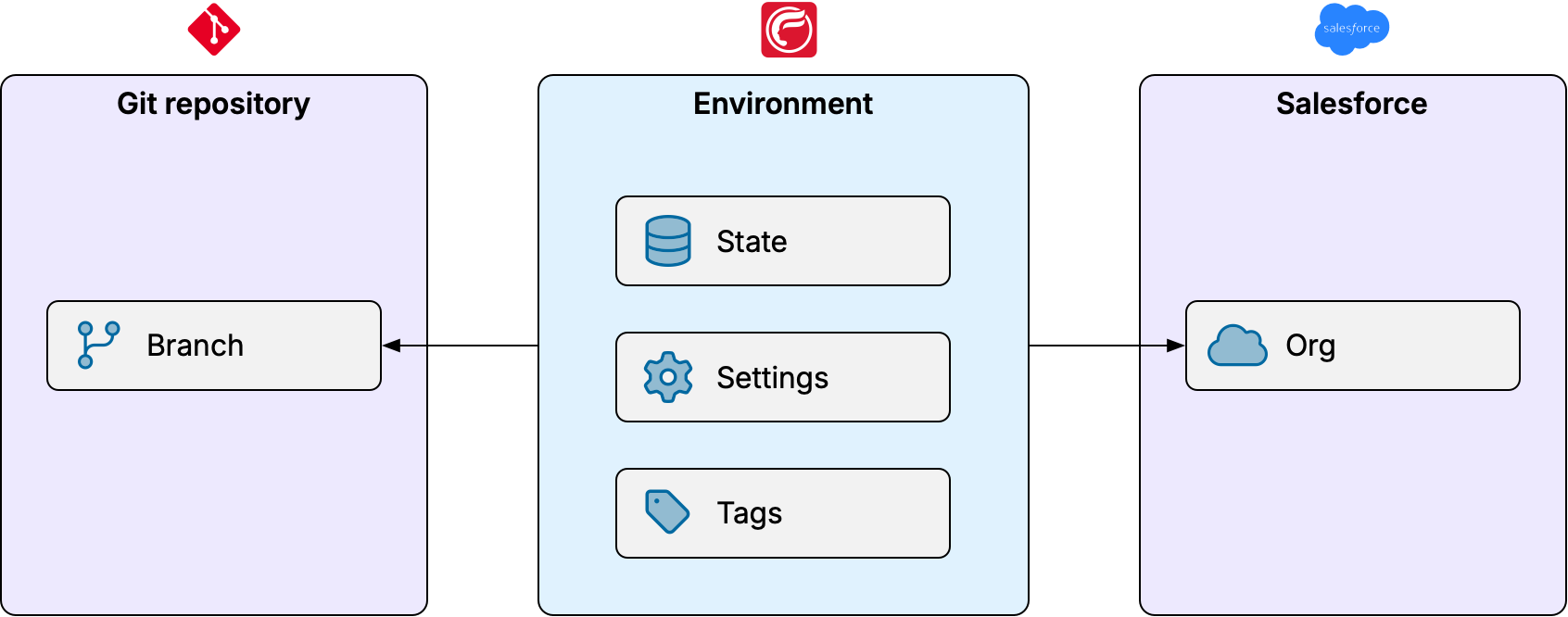
An environment is a configured connection between a Salesforce org and a branch in your Git repository. It's used to keep the metadata in the Salesforce org and the Git branch in sync, by flowing metadata changes from org to branch (retrieving) and from branch to org (deploying). It's also used to flow metadata changes between different environments in the stack (merging).
An environment consists of:
- The name of a branch in your Git repository
- Git commit settings (for example an optional commit message suffix)
- Connection settings for a Salesforce org (production or sandbox)
- API version selection settings
- Tags
- State to keep track of the metadata flow
Production environment
The production environment is simply the environment connected to your Salesforce production org. There must be exactly one production environment in the stack. The production environment is typically connected to the main or master branch in your repository.
The production environment plays a key role in OrgFlow, but only because it's used to create and manage sandboxes. For purposes of metadata change flow and deployment, OrgFlow makes no practical distinction between your production environment and other environments.
This means you are free to make changes directly in your production org, and push commits directly to your main branch, if you decide that's appropriate. Many teams choose to avoid making changes directly in production as a matter of risk management. OrgFlow, however, fully supports flowing changes both downstream and upstream, and imposes no such restrictions.
From a business standpoint, your production org is of course treated with greater care and caution. Your production org is also normally considered the "single source of truth" whenever non-mergeable differences need to be reconciled, either between your production org and your main branch or between your production environment and sandbox environments.
Sandbox environments
As the name implies, sandbox environments are environments connected to Salesforce sandboxes. Sandbox environments are technically optional — there can be zero or more sandbox environments in the stack — but typically you will want some sandboxes in your stack in order to flow metadata changes between environments and get any meaningful DevOps work done.
Structuring sandboxes
You can create and manage as many sandbox environments in your stack as your Salesforce license supports and your workspace subscription limits allow. How frequently you create your sandbox environments, how you structure and name them, how you flow changes between them, when you delete them etc. is entirely up to you.
Some example strategies include:
- Sandbox per user story
- Sandbox per larger project
- Sandbox per developer
- Sandbox for a particular purpose such as staging or user acceptance testing
- Dedicated sandbox for hotfixes
- A mix of the above
Sandboxes are atomic
In OrgFlow, changes are always flowed between environments by merging between Git branches — never as arbitrary copy/paste operations of individual files or metadata components.
This brings a multitude of benefits: detailed change history, the ability to revert or roll back changes, automatic change detection, conflict detection and resolution — just to name a few. It also imposes an important restriction: all metadata changes made in a sandbox environment (and committed to its branch) are always merged to another environment as a single cohesive unit of change.
Properly managed, this constraint is a huge advantage. It removes the tedious and error prone task of figuring out which changes depend on which other changes, in order to create a cohesive set of changes that will successfully deploy.
You should always consider each sandbox environment atomic in terms of flowing metadata changes to other environments, and use the following rule-of-thumb to decide how to assign development efforts between sandboxes:
- If two changes are inextricably linked (i.e. depend on each other, must be deployed together) they should be made in the same sandbox environment
- If two changes are potentially independent (i.e. may need to be deployed at different times) they should be made in two different sandbox environments
The second point is particularly important. For example, consider the following scenario:
- Your team starts developing feature A and feature B in sandbox ROMEO
- Features A and B are merged (atomically) into sandbox TEST
- User acceptance testing is conducted in TEST
- Feature A is accepted, but feature B is deemed not ready for release
- Because features A and B come from the same sandbox and have been committed to the same Git branch, they can no longer be easily separated
- Feature B is now blocking release of feature A
Sandbox lifetime
Environments can technically be short-lived or long-lived, depending on your needs.
The longer a sandbox environment lives, the further it will inevitably drift from your production environment (and from other sandbox environments) in terms of data, users and groups, as well as metadata you have chosen to not include in the flow. Moreover, even if you regularly merge new changes into your sandbox environment from downstream (e.g. production), over time some of those changes will inevitably fail to deploy into the sandbox due to the other discrepancies (a normal and supported occurrence in OrgFlow, in itself).
Such discrepancies that accumulate over time can lead to growing challenges in keeping the sandbox environment up to date. They can also be a source of merge conflicts, and they can make downstream deployments (for example deployments to production) either complete with a higher percentage of failed component or, in the worst case, fail due to failing Apex tests.
Sandbox environment recommendations
For the reasons outlined above, we strongly recommend that you keep sandbox environments as small and short-lived as possible by considering the following practices:
- Don't create a sandbox until it is actually needed
- Keep the scope of changes for a sandbox as small as possible, but no smaller
- Keep inextricably linked changes together
- Keep unrelated changes apart
- If two changes might need to flow downstream at different times, always do them in two separate sandboxes
- If development needs to be paused for a longer time, consider deleting the sandbox (while keeping the Git branch) and recreating a fresh sandbox from the Git branch later when development can resume
- When a sandbox has been merged downstream and deployed, delete it
- For staging and testing sandboxes, consider creating new ones for each release cycle
Git settings
Commit message suffix
Each environment can optionally be configured with a commit message suffix, which is an arbitrary piece of text that OrgFlow will append to commit messages when committing Salesforce metadata changes to this environment's Git branch. This applies to commits made during inbound flow, but not to merges between environment branches, and not to OrgFlow's more technical commits such as metadata normalization and automatic package manifest updates.
The suffix is separated from the main commit message by a blank line, in accordance with Git's conventional commit message format in which the first line is the subject and subsequent paragraphs form the body.
A commit message suffix can be useful for example for tagging all commits made in a particular environment with a work item ID, which in turn allows integrations with work tracking systems (such as Azure DevOps or Jira) to automatically associate commits with the relevant work item.
The commit message suffix can be set when the environment is created, either from the environment creation wizard in the web app or using the --commitMessageSuffix option of the env:create command in the OrgFlow CLI. It can be changed later at any time from the environment settings page in the web app.
Salesforce org settings
Org identity
Each environment stores the org identity to use when connecting to its Salesforce org, consisting of the org's instance URL (for example https://acme--alpha.sandbox.my.salesforce.com) and the username of the Salesforce user to connect as.
The org identity is set automatically when the environment is created. When creating a new sandbox environment, the org identity of the sandbox is inferred from the org identity of the production environment.
If there is no working org connection matching the inferred org identity of a new sandbox environment, OrgFlow tries to authenticate to the sandbox using the authentication sessions available to you on the production org connection that use the client credentials or username/password method (in that order of preference), because both connected apps and external client apps (along with their client credentials) as well as the user account (along with its password) are normally copied to new sandboxes. If one of them works, OrgFlow uses it to set up a private authentication session for you on an org connection to the sandbox, which means the environment can be created without any user interaction. If none of them work, for example because the sandbox was created before they were set up in the production org, OrgFlow instead prompts you to sign in to the sandbox through your browser. Because it can take a while for credentials to propagate to a newly created sandbox, OrgFlow does not prompt you until the sandbox has been active for 15 minutes, but instead keeps retrying the other methods until then.
Whenever OrgFlow needs to connect to the environment's Salesforce org, it authenticates using the org connection in your workspace that matches the environment's org identity. An org connection can hold any number of authentication sessions, each of which is either shared with all members of the workspace or private to the member who created it; OrgFlow uses the shared authentication sessions along with those of the user who started the operation. Only the member who created an authentication session can change whether it is shared, which they can do at any time on the Salesforce authentication tab of the org connection. Because the environment refers to an identity rather than a specific org connection, you can freely replace, restore or recreate org connections without having to update your environments.
You can change the instance URL and username of an environment at any time from the environment settings page in the web app, for example if the user account used to connect to the org has changed. Make sure there is an org connection matching the new values; OrgFlow will not be able to authenticate to the org until there is a working org connection matching the configured identity.
See authenticating to Salesforce for more information.
API version selection mode
You can also specify settings on an environment to control how OrgFlow selects with API version to use when connecting to the org.
By default, these settings are not set on the environment, which means they will be inferred from the settings configured on the stack. This is recommended as it makes administration easier to manage API version settings for all environments in a single place.
However, there are scenarios where you might like specific environments to use a different API version selection mode than the rest of the stack, such as during Salesforce preview windows.
See the section about managing API versions to learn more.
Tags
Tags are arbitrary name-value pairs that you can add to environments. They are completely optional, but can be useful for a variety of purposes, such as:
- To help keep environments organized
- To add arbitrary information to environments that is useful to you
- To use for enviroment selection in schedules to make them more flexible
- To help keep hard-coded environment identifiers out of scripts and CI/CD pipelines
- To help avoid unnecessary commits and churn on your scripts and CI/CD pipelines
Tags are a simple but powerful automation feature of OrgFlow. They allow you to build schedules, scripts, CI/CD pipelines and other forms of automation that treat environments differently without having to hard-code environment identifiers into your scripts. Instead, you can set different tags on different environments and base your script logic on those tags.
Tags can either have no value (value-less tags) or any text value (value tags). Value-less tags are designed for purposes where there mere presense of the tag is sufficient, such as when representing and acting on boolean conditions (for example IsDisabled to indicate that an environment is temporarily disabled). Value tags are useful when you need to filter or carry out actions based on values that may differ between environments, such as send an email to the owner of an environment (for example OwnerEmail:dimitrius@acme.com).
Neither tag names nor tag values carry any special meaning to OrgFlow; you decide what names and values make sense to you, what they mean and and what to use them for. Both tag names and tag values are case-insensitive. Tag names may only contain alphanumeric characters, hyphens and underscores. Tag values may contain anything except newline characters.
Some examples:
| Tag | Value | Description |
|---|---|---|
Team | Engagement | Indicate which team has primary ownership of the environment. |
Release | Aug 2025 | Indicate which release the feature is slated for. |
IsInactive | Indicate that the environment should not receive upstream changes for the moment. | |
IsDeployed | Indicate that the environment has been merged and deployed to production, and is a candidate for cleanup. | |
Channel | #campaigns | Indicate the name of a Slack channel where the feature can be discussed. |
In the above examples, IsInactive and IsDeployed are value-less tags. They are named as boolean conditions in this example (starting with the word "is") but they don't have to be; naming is completely up to you.
Use cases
The potential use cases for tags are virtually unlimited and depend on your requirements, but here are some examples of what environment tags might be used for:
Categorize and group your environments and create schedules, scripts or CI/CD pipelines that apply particular logic or processing only for environments in a certain category or group. As an example, you might categorize all your environments as either
dev,test,staging. You might then create a schedule that flows in changes to Git every night, but only for environments with the tagCategory:dev, because no changes made intestandstagingenvironments should be preserved.Save arbitrary values on your environments and use those values as per-environment inputs to the logic or processing in your scripts or pipelines. As an example, you might designate a code owner for each development environment, and store the owner's email address on each environment with tags similar to
OwnerEmail:name@domain.com. In your CI/CD pipelines, you might then send an email to the owner of any environment where merge conflicts are detected.Flag your environments based on boolean semantics and use conditional logic or processing in your scripts or pipelines based on those flags. As an example, you might add a
noMergeFromDownstreamtag to some environments to allow environments to temporarily stop receiving automatic merges from downstream environments. In your schedule, you would then exclude any environments with this tag from processing.Link your environments to external resources. When adding a tag you can use a fully qualified URL as the tag value, OrgFlow renders the tag value as a clickable link in the web app. As an example, you might link each environment to a user story in a work item tracking system with tags similar to
Story:https://acme.visualstudio.com/workitems/2164. This can be useful for associating an environment with some external item in another system, for example a user story in a work tracking system, or a dedicated Slack channel where the environment's development efforts are discussed.
Snapshots
Whenever OrgFlow flows metadata in or out of an environment (including as part of other operations such as flow merge or environment creation) it records a snapshot of the environment. A snapshot captures the HEAD commit of the environment's Git branch at that point in time, along with the environment's state stored in OrgFlow's cloud (such as the latest commit known to be in parity with the Salesforce org). Snapshots are numbered sequentially per environment.
You can view the snapshots of an environment on the Snapshots tab of the environment page in the web app, or using the env:snapshot:list command in the OrgFlow CLI. Select a snapshot number in the web app to view the details of that snapshot.
Snapshots are subject to your workspace's data retention period and are automatically deleted when they become older than that.
Rolling back to a snapshot
An environment can be rolled back to any of its snapshots. A rollback restores the environment to the point in time when the snapshot was recorded by:
- Updating the environment's state in OrgFlow to match the snapshot
- Resetting the environment's remote Git branch to the snapshot's HEAD commit (unless Skip Git rollback is selected)
- Performing an outbound flow to deploy the metadata at the snapshot's HEAD commit to the environment's Salesforce org (unless Skip Salesforce rollback is selected)
Skipping only one of the Git or Salesforce rollbacks may result in the remote Git branch and the Salesforce org being out of sync with each other. Any snapshots recorded after the target snapshot are hard-deleted as part of the rollback. If you roll back to a snapshot that was recorded while the environment targeted a different Git branch, the environment is switched back to that branch.
To roll back an environment in the web app, select a snapshot on the Snapshots tab of the environment page (or open the snapshot's details) and select Roll back. The rollback runs as a job that you can follow and rerun like any other job. In the OrgFlow CLI, use the env:rollback command.
Rolling back an environment requires permission to update the environment, as well as permission to force push to the environment's Git branch (unless the Git rollback is skipped) and to deploy to the environment's Salesforce org (unless the Salesforce rollback is skipped). See roles and permissions for details.
Deleting snapshots
Snapshots that you no longer need, or that you don't want to be used as rollback targets, can be deleted. To delete snapshots in the web app, select any number of snapshots on the Snapshots tab of the environment page and select Delete. In the OrgFlow CLI, use the env:snapshot:delete command. Deleting snapshots requires permission to delete the environment's snapshots. See roles and permissions for details.
Locks
Whenever an operation runs in OrgFlow that might mutate the state of an environment (including files in its Git branch and metadata in its Salesforce org) OrgFlow puts a lock on the environment to ensure that it cannot be mutated by multiple operations running concurrently. Without this protection, an environment could end up in an inconsistent or corrupted state.
An environment's lock status can be seen on the environments page in the web app:

If an environment is already locked, and you start a new job that needs to lock the same environment, the new job waits up to 45 minutes for the existing lock to be released before failing.
Operations requiring locks
The following table shows some example operations and their resulting locks (this list is not exhaustive):
| Operation | Locks | Why |
|---|---|---|
| Create environment A | A | Creates branch, creates+mutates org |
| Flow in environment A | A | Mutates branch |
| Flow out environment A | A | Mutates org |
| Flow in environment A — check-only | - | No mutation |
| Flow out environment A — check-only | - | No mutation |
| Flow merge A to B | A + B | Mutates both branches and target org |
| Flow merge A to B — no source in | B | Mutates target branch and org |
| Flow merge A to B — git-only | B | Mutates target branch |
| Flow merge A to B — check-only | - | No mutation |
| Delete environment A | A | Deletes branch and/or org |
| Roll back environment A | A | Mutates branch and/or org |
Manually unlocking an environment
In rare cases it may happen that an environment is left in a locked state by a job that terminated abruptly. This can happen if a managed worker gets terminated by cloud infrastructure due to maintenance or outages, or if you run an operation using the CLI and forcibly terminate the orgflow process.
An environment being left in a permanent locked state prevents any further operations against that environment until the situation is resolved.
In such cases the environment can be manually unlocked, either on the environment settings page in the web app, or using the env:unlock command in the OrgFlow CLI.