
Importing data into Salesforce
OrgFlow's data import feature lets you take data records from a source file in one of the supported file formats and ingest them into a Salesforce org. You can insert new records, update or upsert existing ones, or delete records — all powered by the Salesforce Bulk API for fast and efficient processing.
After the import completes, OrgFlow produces result files that show how each record was processed, including any errors — making it easy to verify the outcome and troubleshoot failures.
Starting a data import job
To start an import job, navigate to the Data page in OrgFlow Web and select Import data. This opens the Import data dialog, where you configure the inputs and options of the import job.
If the Salesforce org you're looking to import data into is an environment in your stack, you can also open the Import data dialog from the Environments page, or from the details page of an individual environment; in this case the Salesforce org selection will be prepopulated.
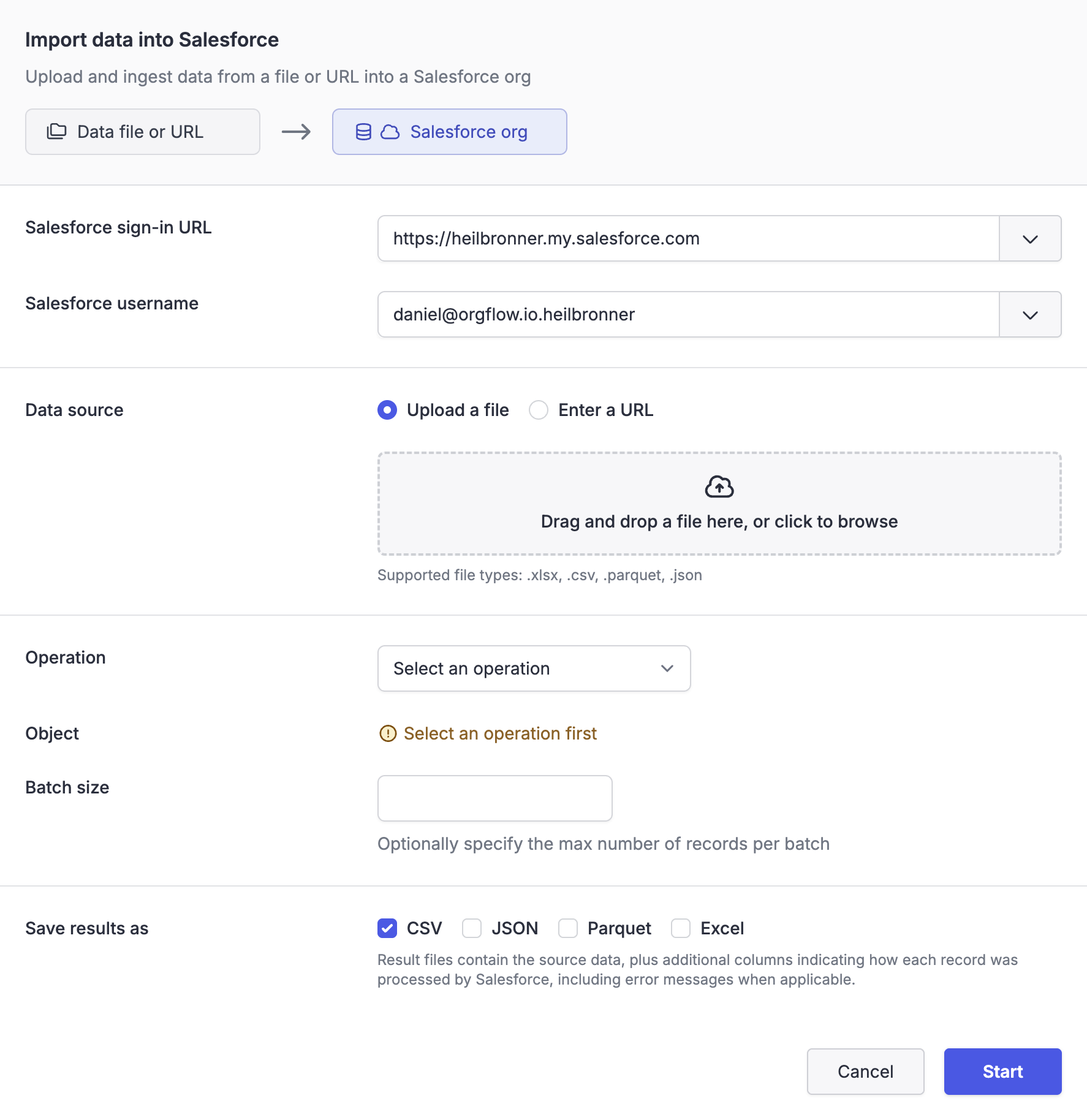
The following sections describe the available options.
Salesforce org
You must first select which Salesforce org to import into, by providing the org's sign-in URL and a username.
OrgFlow will provide suggested sign-in URLs and usernames that it already knows about from your stack's environments and stored access tokens. You can also enter a different sign-in URL or username manually.
Once a sign-in URL and username have been entered, OrgFlow will automatically verify your authentication. If the user has not previously been authorized, OrgFlow will initiate a Salesforce device code authorization flow to obtain the required access.
Use any Salesforce org
Data operations can target any Salesforce org that you can authenticate to — the org doesn't have to be configured as an environment in your stack.
Data source
There are two ways to provide the source data:
- Select a file from your computer to upload. The file is uploaded to OrgFlow's temporary storage and used as the data source for the import. Supported file types are
.csv,.json,.parquetand.xlsx. - Provide a URL that points to a file hosted elsewhere. The URL must reference a file with one of the supported extensions (
.csv,.json,.parquetor.xlsx). OrgFlow will fetch the file from this URL when the import job executes.
Regardless of which method you choose, the data source needs to be in one of the supported file formats.
NULL values, empty strings, and #N/A
OrgFlow automatically handles NULL values and empty strings in the source data, and passes these values on to the Salesforce Bulk API correctly. However, it's important to understand how Salesforce will handle these values:
- A
NULLvalue for a field will cause Salesforce to set the value of the field toNULL(i.e. blank out the field) - An empty string value will cause Salesforce to ignore that field for the record in question
Salesforce requires that these values are uploaded to the Bulk API in a manner that it can understand. This requires converting NULL to the string literal #N/A, which is how Salesforce differentiates between fields that should be ignored and fields that should be set to NULL. OrgFlow handles this natively for you.
However, this means that any source data that has a value of #N/A will also be interpreted by Salesforce as a NULL value. This is an unavoidable quirk of the Bulk API, and is something that you will need to consider if your source data contains the string value #N/A.
For example, an update of the Account object with source data that looks like this:
| Id | Name | Description |
|---|---|---|
| .. | Account 1 | "This is a great account" |
| .. | Account 2 | "" |
| .. | Account 3 | "#N/A" |
| .. | Account 4 | NULL |
Will result in these changes to the Description column in Salesforce:
- Account 1: Set to "This is a great account"
- Account 2: Ignored - any previous description will remain in place
- Account 3: Set to
NULL(cleared out) - Salesforce interprets#N/AasNULL - Account 4: Set to
NULL(cleared out) - OrgFlow convertsNULLto#N/A, Salesforce interprets#N/AasNULL
Operation
The operation determines what Salesforce does with the records in the source file. There are five available operations:
| Operation | Description | Requires Id field | Requires external key field |
|---|---|---|---|
| Insert | Create new records in the org | No | No |
| Update | Update existing records in the org, matched by record Id | Yes | No |
| Upsert | Insert new records or update existing ones, matched by an external key field | No | Yes |
| Delete | Soft-delete records in the org (moved to recycle bin), matched by record Id | Yes | No |
| Hard delete | Permanently delete records in the org (bypasses recycle bin), matched by record Id | Yes | No |
The selected operation influences which Salesforce objects appear in the object picker, because different objects support different operations.
Object
Select the target Salesforce object that the records should be ingested into (e.g. Account, Contact, Lead). The list of available objects is dynamically populated based on the selected operation. Only objects visible to the selected Salesforce user are shown.
External key field
This option is shown only when the upsert operation is selected. You must select an external key field on the target object that OrgFlow will use to match incoming records against existing records in the org.
If a record in the source file has a value that matches an existing record's external key field value, that record is updated. Otherwise, a new record is inserted.
Batch size
Optionally specify the maximum number of records to include in each Bulk API batch. Valid values are between 1 and 10,000. If left blank, OrgFlow uses a sensible default.
Smaller batch sizes can be useful when importing records that trigger complex Apex logic or process automation, to avoid hitting governor limits. Larger batch sizes generally result in faster imports and help you stay under the daily Bulk API batch limit.
Result files
Result files contain the original source data plus additional columns added by Salesforce, indicating how each record was processed. These additional columns typically include the record ID (for inserts), a success/failure indicator, and error messages for any records that failed.
You can choose which file formats to use for the result files. The available formats are CSV, JSON, Parquet and Excel. You can choose more than one format, and you don't need to include the same format you used for the source.
Excel is limited to 1,048,576 records
Excel files are limited to a maximum of 1,048,576 records due to limitations in most software tools that can open them. If your import operation contains more than 1,048,576 records, no Excel result file will be created.
Job execution
When you submit the import, OrgFlow provisions a job to perform the import. The job executes the following steps:
- OrgFlow connects to the target Salesforce org
- OrgFlow downloads and validates the source file, checking that its columns align with the target object's fields
- OrgFlow splits the source data into batches
- OrgFlow creates a Bulk API ingest job in Salesforce and uploads the batches
- Salesforce processes the batches and produces per-record results
- OrgFlow retrieves the results and merges them with the source data
- OrgFlow saves the merged results as downloadable artifacts on the job
You can monitor the progress of the import on the job details page. When the import is complete, downloadable result files appear as artifacts on the job.
Column validation
Before uploading data to Salesforce, OrgFlow validates that the columns in the source file are recognized fields on the target object. If there are columns in the source file that don't correspond to any field on the target object, OrgFlow will prompt you to decide whether to continue or abort. Columns that are not valid for the selected operation, or not visible to the selected Salesforce user, are automatically excluded.
Job result
When the import completes, the job result shows the following statistics:
| Statistic | Description |
|---|---|
| Records processed | The number of records successfully processed by Salesforce |
| Records failed | The number of records that failed to process |
| Records uploaded | The total number of records submitted to the Bulk API |
| Batches used | The number of Bulk API batches used |
| Retries | The number of batch retries that were performed (if any) |
The result files are available as artifacts on the job and can be downloaded directly from the job details page. They contain your original source data augmented with result columns from Salesforce, making it easy to understand how each record was processed and identify which records succeeded, which failed and why.